
A barcode sheet is only useful when every code carries the right data and stays readable at its final size. A UPC-A barcode encodes exactly 12 numeric digits, and a UPC-A barcode generator can turn that number into a downloadable barcode image. The barcode identifies a product; it doesn’t contain its name or price.
If you’re preparing product codes, accuracy comes first. A mistyped digit or barcode that is too small can cause scanning problems, so enter the correct number and prepare the barcode at a readable size.
This guide explains how UPC-A barcodes work, how the check digit helps detect data-entry errors, and how to enter digits and adjust barcode size. You’ll also learn why SVG is useful for resizing, how to download an individual file, and how barcode sheets can organize multiple codes for a print layout. The steps are practical: understand the number, generate the barcode, then prepare the format and size you need.
Key Takeaways
- Choose SVG when you need a barcode graphic that can be resized without losing sharpness.
- Enter the full 12-digit UPC-A number, then set the export dimensions to suit the intended use.
- Understand how the final check digit helps detect input errors before generating a barcode.
- Learn how to prepare individual barcode downloads or arrange multiple codes into a sheet.
What are the benefits of downloading barcodes in SVG format?
An SVG download keeps barcode lines sharp when you resize the image for a label or product layout. Unlike a raster image, SVG stores shapes as vector instructions, so scaling does not blur the bars. Generate the code from the correct product number, select SVG, and save it for your design workflow.
Choose the format that fits where the barcode image will appear. PNG is a raster format that can suit documents and common design tools, though its suitability for printing depends on the image resolution and intended use. JPG is another raster option, but its compression can soften crisp bar edges. SVG works well when you need to resize images across layouts or embed a scalable graphic in a webpage.
A UPC-A barcode generator should encode the intended number, not a product name or price. UPC-A uses 12 numeric digits. For example, use that format for a retail product identifier; choose Code 128 when encoding alphanumeric internal data. For international retail use, confirm the identifier and barcode format suit the product’s sales context before creating the image.
To create and download a barcode image:
- Enter the product’s UPC-A number and select UPC-A as the format.
- Review the generated bars and human-readable digits before downloading.
- Export SVG for resizing, or choose PNG or JPG for a raster image workflow.
- Place the saved file in a label design or embed it in a webpage layout.
To embed the barcode, insert the downloaded SVG into your page or design file, then preserve its proportions as you adjust the display size. Check that the barcode remains clear in the final layout, not just in the editor preview.
UPC-E is a compressed version of UPC-A, designed for smaller packaging. It represents eligible UPC-A data in a shorter barcode form.
Test a generated barcode with a scanner after exporting and again at its final printed size. Confirm that the scan returns the intended digits, then adjust the image size or export format if the bars are difficult to read.
Entering barcode data and adjusting export size
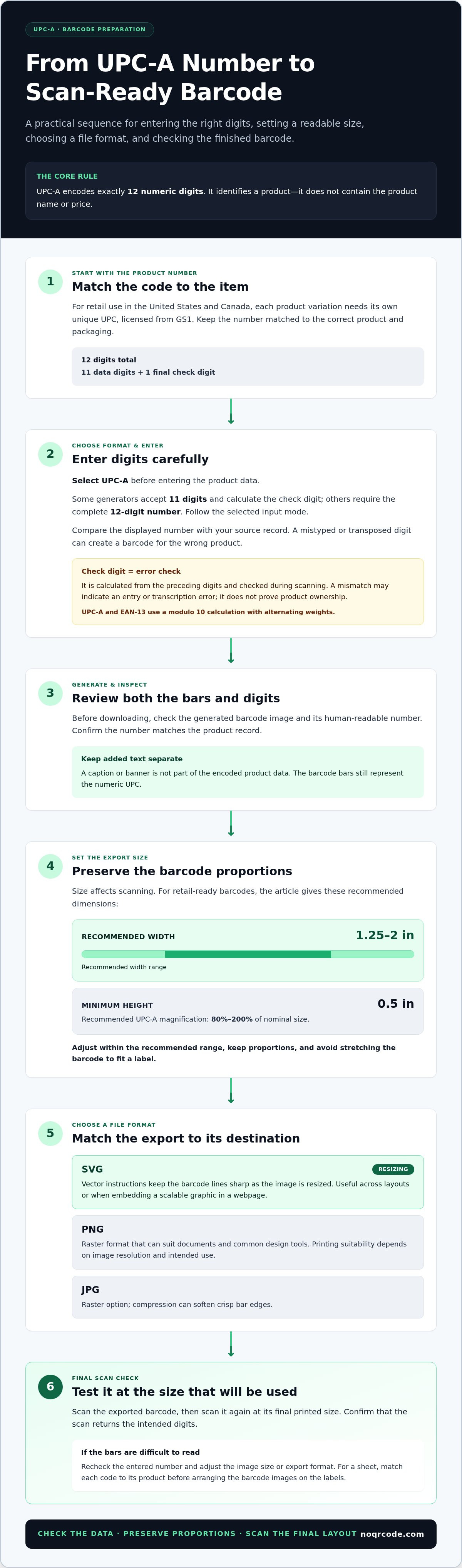
Enter the product’s complete UPC-A number as numeric data. UPC-A encodes exactly 12 digits and doesn’t support letters. A barcode identifies an item; it doesn’t encode its product name, price, or other descriptive details. For retail use in the United States and Canada, each product variation needs its own unique UPC, licensed from GS1.
Follow the generator’s input steps carefully. Select UPC-A, enter the digits, and review the displayed number before generating the barcode. If the tool calculates the check digit automatically, enter the required data and let it complete the final digit. A transposed digit can produce a valid-looking barcode for the wrong product, so compare the result with your source record.
- Choose UPC-A as the barcode type.
- Enter the numeric product data in the input field.
- Check the generated digits and barcode image.
- Set the export size for the intended label or packaging.
Some generators let you customize a caption or banner. In the described format, add a colon after the barcode number, followed by the replacement message. Keep the text separate from the encoded product data: the bars still represent the numeric UPC, not the caption.
Size affects scanning. Retail-ready barcodes are generally recommended to measure between 1.25 and 2 inches wide, with a minimum height of 0.5 inches. The recommended UPC-A magnification range is 80% to 200% of nominal size. Adjust dimensions within that range, preserve the barcode’s proportions, and avoid stretching it to fit a label.
Before preparing a sheet, match each code to its product and packaging. Retail checkout uses UPC barcodes for product identification, while internal tracking may call for a different format. For multiple items, record which UPC belongs to each variation, then arrange the barcode images on the intended labels.
Use a barcode generator to create and size the image, then scan a sample at its final dimensions before printing a full sheet. This helps catch mismatched data or a layout that makes the bars difficult to read.
How does the check digit work in UPC-A and EAN-13 barcodes?
A check digit helps barcode software detect errors in identification numbers. It is calculated from the preceding digits and can be checked during scanning.
Barcode Structure and Check Digits
A UPC-A number contains 11 data digits followed by its check digit. The check digit is the final digit, used to detect errors when the barcode is scanned. EAN-13 follows the same principle, with 12 preceding digits and a final check digit. Both formats use a modulo 10 calculation with alternating weights across the preceding digits.
To verify a number, apply the alternating-weight calculation to its data digits, then compare the calculated check digit with the final digit. A mismatch may indicate an entry or transcription error. The check digit supports accurate inventory identification, but it does not prove that a number belongs to a specific product or owner.
UPC-A Digit Requirements
UPC-A has a fixed length of 12 digits in total. Some generator input fields accept 11 digits and calculate the final check digit automatically; others accept the complete 12-digit number. Follow the selected mode’s input requirement. EAN-13 requires exactly 13 digits, including its check digit, and belongs to the GTIN system as GTIN-13. UPC is GTIN-12.
Input length also affects the generated barcode type. In default UPC/EAN mode, 7 digits generate UPC-E, while 8 digits starting with 0 generate UPC-E. An 8-digit input not starting with 0 generates EAN-8. A 12-digit input generates UPC-A, and 13 digits generate EAN-13. Select the intended format before entering numbers.
Common generation errors include entering the wrong number of digits, choosing the wrong format, or supplying an incorrect check digit. Correct the input, select UPC-A, and let the generator calculate the final digit when that option is available.
For a reliable workflow, compare the entered digits with the product record, then scan the generated barcode and confirm that the returned number matches. A successful scan does not prove product identification: the encoded digits must still match the intended record. A valid check digit catches some errors, but not every incorrect number.
How does a UPC-A barcode generator work?
A UPC-A barcode generator converts numeric product data into a pattern of dark bars and light spaces. It checks the input format, calculates or verifies the check digit, then renders the pattern as a barcode image.
Start by selecting UPC-A and entering the product’s assigned number. The generator uses the digits to create a machine-readable pattern, with the human-readable number beneath it. The bars and spaces encode the value; changing their widths or order can affect what a scanner reads.
UPC-A uses guard patterns to mark the beginning, center, and end of the symbol. These markers help a scanner identify the barcode’s structure and read its data. The left and right portions encode digits using different bar-and-space patterns, allowing the scanner to interpret the full symbol in sequence.
GS1 specifies that, for UPC-A and other listed barcode types, bars and spaces for digits 1, 2, 7, and 8 are adjusted by one-thirteenth of a module width. This is part of the symbol’s technical construction, not decorative styling. Keep the generated pattern intact when exporting, resizing, or placing it in a layout.
Use this workflow to generate a code correctly:
- Select UPC-A rather than another barcode format.
- Enter the product’s assigned digits and review the displayed data.
- Generate the barcode, then export it in the format needed for your layout.
- Scan the saved image and compare the decoded number with the intended product record.
A scan confirms that the symbol can be read, but the decoded number must still match the correct item. When preparing a barcode sheet, keep each code paired with its product record before arranging the images.
Generate a barcode from your product number with the online barcode generator, then scan the exported image to check its encoded data.
NO QR CODE (NOQRCODE.COM): QR Code Generator
NO QR CODE (NOQRCODE.COM) provides tools to create and check codes. Use its Barcode Generator to create a UPC-A barcode or another supported format, or use the Bulk Code Generator to prepare multiple codes. The QR Code Generator serves a different purpose: it creates QR codes for information such as a website address or contact details.
After generating a barcode, use the QR & Barcode Scanner to read and review it. This gives you a practical way to check that the scanned data matches your intended content. For a batch workflow, generate codes in bulk, then scan samples as part of your review.
Choose the tool that matches your task: barcode creation, QR code creation, bulk generation, or scanning. Visit noqrcode.com to use NO QR CODE (NOQRCODE.COM)’s free code tools.
Put Your Barcode Workflow Into Practice
Build a repeatable workflow: keep product data organized, create each code from its intended identifier, and review the output before using it in a layout. This process helps keep codes matched to products as packaging changes. A UPC-A barcode generator is one part of the workflow; accurate records and a final scan help complete the check.
NO QR CODE (NOQRCODE.COM) offers a Barcode Generator for barcode creation, a QR Code Generator for QR code tasks, and a QR & Barcode Scanner for reading codes. Choose the tool that fits your next task, whether you need to generate a code or scan one to review its data.
Ready to continue? Visit NO QR CODE (NOQRCODE.COM) and choose the code tool for your next task. Start with one product, follow the same careful steps, and build a workflow that works for you.
Frequently Asked Questions
What is a UPC-A barcode?
A UPC-A barcode is a retail product identifier that represents a 12-digit number in machine-readable bars. It’s commonly used for products sold in the United States and Canada. The number identifies the product in a retail system; it doesn’t store details such as the product name, ingredients, or price. A scanner reads the code and passes the digits to the connected system.
Can I generate multiple barcodes at once?
Yes. The Bulk Code Generator can create multiple barcodes from a prepared list or CSV file and package the results for download. Keep a product reference beside each number in your source file so you can match every image to the correct item. Before using a batch, scan sample codes and compare the decoded numbers with their records.
Do I need a different UPC for each product variation?
Yes. Each product variation needs its own unique UPC. For example, a product offered in different sizes or flavors should have a distinct identifier for each variation. This lets retail systems distinguish items at checkout and during inventory handling. Keep a record that maps every UPC to the precise product version, then use the same pairing in product listings and packaging layouts.
Don't have UPC Codes yet?
Get a unique UPC number licensed from GS1 before assigning a code to a product for store or marketplace sales. A barcode generator turns the number you provide into a scannable image; it doesn’t assign an official product identifier. Avoid making up a number or reusing one from another item. Keep the assigned code tied to its product record for consistent identification.
How can you create UPC-A barcodes online for free?
Use a UPC-A barcode generator, choose the UPC-A format, enter the product number, and export the result. NO QR CODE (NOQRCODE.COM) provides a free online Barcode Generator with no sign-up required. It processes generation locally in your browser and supports SVG and 300 DPI PNG downloads. After exporting, scan the image and confirm it returns the intended digits.
How do I create a barcode image for my product?
Start with the product’s assigned UPC, then use a UPC-A barcode generator and select UPC-A. Enter the number, generate the image, and choose an export format suited to your design workflow. Place the image in the product label or packaging layout without distorting it. Scan a test copy at its final size and verify the decoded number against your product record before use.


