
The hard part isn’t drawing the bars. It’s choosing the right format and keeping each code matched to the right item. A free barcode generator turns data into a barcode image, with formats suited to different product, inventory, and tracking needs. For longer lists, bulk generation can reduce repetitive entry and create codes from a set of records.
You may need just one barcode or codes for an entire product range. In either case, the format, image size, and download type affect how you can use the result. This guide explains which barcode types suit common data, how size and contrast affect scanning, and how to create and download barcode images.
You’ll also learn how bulk generation works and when it is more practical than creating codes one at a time. Follow these steps to turn raw data into barcode files for your labels, products, or workflow.
Key Takeaways
- Match the barcode format to the data it needs to encode, from product numbers to alphanumeric identifiers.
- Keep bars clear and proportioned so the printed code remains easy for scanners to read.
- Choose an image format that suits your design workflow, then prepare the file for its intended use.
- For product lists, organize each item’s identifier before generating codes in bulk to keep records aligned.
How many characters can each barcode type hold?
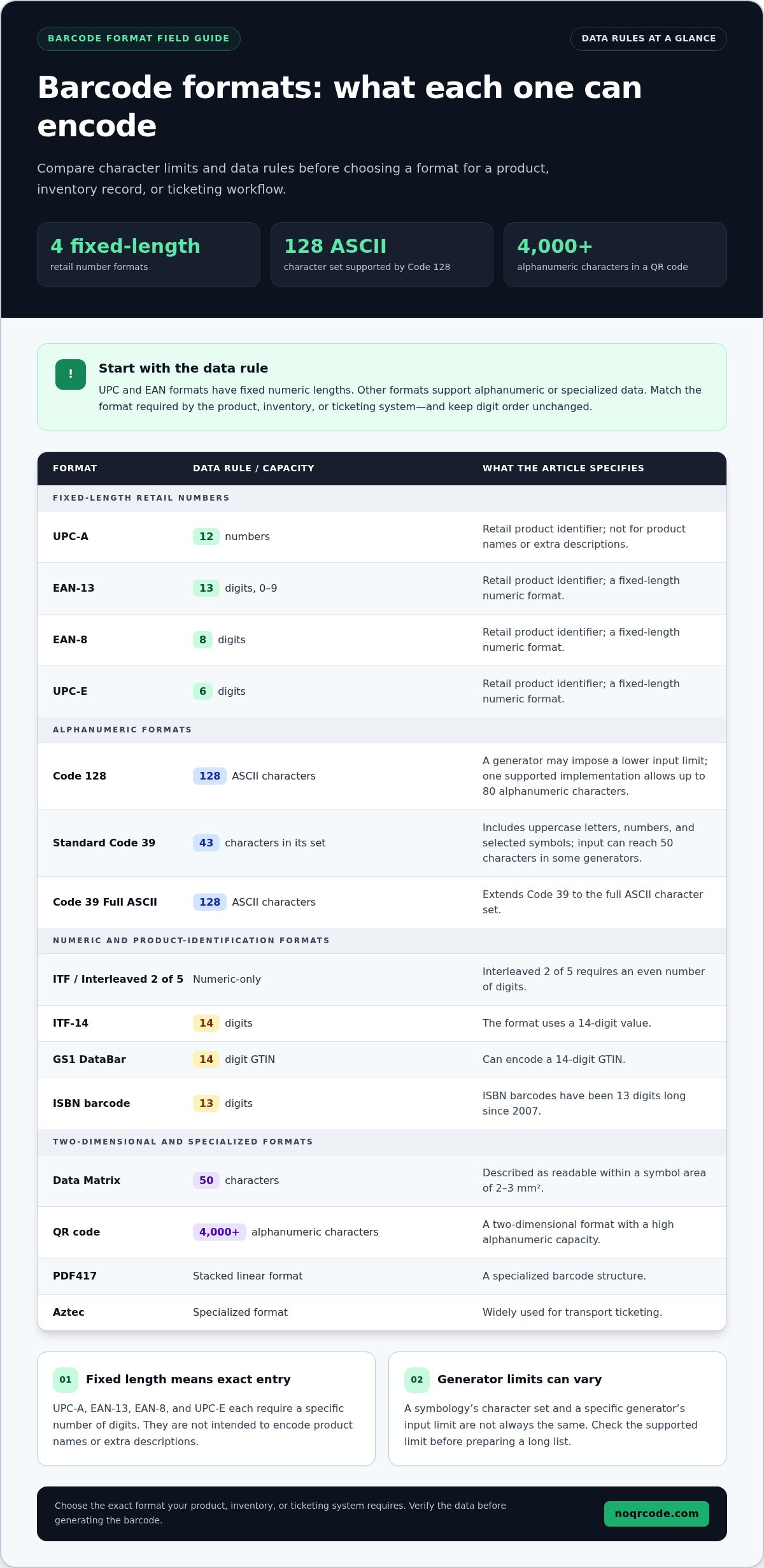
Choose a format by matching its data rules to the information you need to encode. UPC-A contains 12 numbers, while EAN-13 contains 13 numbers and represents digits from 0 to 9. EAN-8 uses 8 digits, and UPC-E uses 6 digits. These fixed-length formats suit retail product identifiers, not product names or extra descriptions.
For alphanumeric data, compare Code 128 and Code 39. Code 128 can encode all 128 ASCII characters, while a generator may set a lower input limit; one supported implementation allows up to 80 alphanumeric characters. Standard Code 39 uses 43 characters, including uppercase letters, numbers, and selected symbols. Its variable-length input can reach 50 characters in some generators. Code 39 Full ASCII extends the character set to all 128 ASCII characters.
- ITF and Interleaved 2 of 5: Numeric-only formats; Interleaved 2 of 5 requires an even number of digits.
- ITF-14 and GS1 DataBar: ITF-14 uses 14 digits, and GS1 DataBar can encode a 14-digit GTIN.
- Data Matrix: Can encode 50 characters in a symbol described as readable within an area of 2-3 mm².
- QR code: A two-dimensional format that can hold more than 4,000 alphanumeric characters.
Other symbologies serve specific workflows. PDF417 is a stacked linear format, while Aztec codes are widely used for transport ticketing. ISBN barcodes have been 13 digits long since 2007. Use the exact format required by the product, inventory, or ticketing system, then enter its data without changing digit order.
Image format affects how you place or scale the result, not how much data its symbology holds. SVG is vector-based, so it can scale without becoming pixelated. PNG is a raster image; the available download includes 300 DPI resolution. Select the file type your layout supports, then check that the encoded data remains accurate. A QR and barcode scanner can help test the generated image before use.
Barcode size, X-dimension, and scan reliability
Size affects how well scanners distinguish bars from spaces and read encoded data. Before choosing a final scale, check the symbology, label dimensions, print contrast, and placement.
Barcode Dimensions and X-Dimension
The X-dimension is the width of the narrowest bar or space, measured in thousandths of an inch, also called mils. It sets the basic scale of a linear barcode: changing it changes the width of the full symbol. For most retail-ready barcodes, a width between 1.25 and 2 inches is recommended. Match the dimensions to the available label area without squeezing or stretching the symbol.
Size depends on the symbology and the data encoded. A longer numeric inventory code or a Code 128 value containing letters may create a wider symbol at the same X-dimension. Review the complete barcode, including its clear margins, against the actual label layout. A vector file can be resized, but preserve its proportions so bars and spaces remain consistent.
Quiet Zones and Scan Reliability
Quiet zones are blank margins beside a barcode. They help scanners distinguish the symbol from nearby text, borders, and graphics, so keep them clear on your labels. If the design crowds these margins, a scanner may mistake surrounding marks for part of the barcode, even when the bars look sharp.
Reliable scanning also depends on contrast and surface. Black bars on a light background are easy to distinguish, while low-contrast colors can make edges harder to detect. A barcode may fail if it is printed too small, stretched, or placed on a curved surface. Test the label at its final size on the intended item, using the lighting and angle expected during normal handling.
Error correction applies to two-dimensional formats such as QR codes. It adds redundant data, helping a scanner recover information when part of the symbol is obscured or damaged. Higher correction can make a QR code denser, so balance recovery needs against the space available on the label. It doesn't replace clear margins or adequate print quality. For a test image, use a barcode generator, then scan the code at its intended size before applying it to labels.
Creating and downloading barcode images
Start with the exact identifier, then select the symbology that matches it. A barcode image is useful only when both its encoded data and printed output suit the intended package or label.
Choose a free online barcode generator that supports the required symbology and provides a suitable download format. For linear barcodes, enter the data carefully, generate the image, and test it before printing.
A browser-based generator works on iPhone, Android, or desktop without requiring a separate app. Choose a tool based on its format options, export types, and fit with your device and workflow.
Free generated barcodes can be used for retail products when they encode the correct product identifier. Retail barcodes need unique identifiers assigned through GS1; generating the image alone doesn’t assign one.
Free tools vary in download limits, watermarks, and paid features. This service is 100% free and requires no sign-up; downloads include SVG and 300 DPI PNG. Data handling varies by tool, so avoid entering sensitive information unless its privacy terms explain how submissions are handled.
SVG Downloads and Printing
SVG stores barcode artwork as vector shapes, so you can resize it for a package layout without the pixelation associated with raster images. PNG and JPG are raster alternatives; the available downloads include a 300 DPI PNG. Choose SVG for flexible design work or a raster file for a fixed-size placement, then print a sample and scan it before producing barcode labels.
For printing, preserve the barcode’s proportions and keep its bars sharp. You can scale an SVG in a design application, but stretching a linear barcode changes its proportions. Test the printed result on the intended package surface, not just on screen.
Generator and App Options
Online generators are convenient for quick creation in a desktop or mobile browser. Dedicated apps may suit workflows that start on an iPhone or Android device. Compare supported formats, download types, and how easily you can enter the required character string. A tool that exports SVG, PNG, or JPEG gives you options for editing and printing.
Follow this sequence: select the symbology, enter the data, generate and download the barcode image, then scan a printed sample. A QR and barcode scanner can confirm that the final image reads correctly before you apply it to packages or inventory labels.
Bulk barcode generation
Bulk creation helps when an inventory contains many records that need separate, readable codes. Businesses managing more than 50 to 100 items often move beyond manual barcode generation. The key is preserving the link between each item and its identifier throughout the batch.
Prepare a clean source list before generating codes. Give each product or variation its own row, with a unique identifier and clear product reference. Each product variation needs its own unique UPC. For example, a shirt in different sizes or colors needs distinct product identifiers, not one reused code.
Next, select the barcode type that matches the data and application. UPC-A and EAN-13 encode numeric product identifiers, while Code 128 supports alphanumeric data for uses such as internal inventory tracking. Code 39 is another option for uppercase letters, numbers, and selected symbols. Keep one format consistent across records that share the same scanning workflow.
- Check the source: Remove blank entries and confirm each identifier matches its product record.
- Check uniqueness: Look for repeated values before generating the batch.
- Check the output: Compare sample barcode images with their source records and scan them before use.
After generating the codes, keep a reliable match between each code and its inventory entry. Use the product name or internal reference in the same order as the generated files. This makes it easier to apply the right barcode to each item and reduces mix-ups during packing, receiving, or stock counts.
Bulk generation creates images, not product identifiers. If products need retail UPCs, obtain valid unique identifiers for them; generating repeated or improvised values can disrupt product identification. For internal applications, select a format compatible with your scanners and records. Then generate a small test batch, scan it, and confirm every result matches the intended item before processing the full inventory. Generate barcode codes in bulk when your records are ready.
NO QR CODE (NOQRCODE.COM): QR Code Generator
NO QR CODE (NOQRCODE.COM) helps you create individual codes or prepare a batch. Its Barcode Generator creates barcode images, while the Bulk Code Generator handles workflows with multiple records. Use the QR Code Generator for QR content, or the QR & Barcode Scanner to test a generated code.
The tools are 100% free and require no sign-up. For retail products, generating a barcode image doesn’t assign a unique product identifier; use the appropriate identifier for your product, then encode it in the matching format. For internal inventory codes, choose a barcode type that fits your data and scanning setup, and test the result before use.
Visit noqrcode.com to generate a barcode or QR code for your next project.
Turn Your Barcode Plan Into a Usable Workflow
First, decide where each code will be used: on a product, in an inventory record, or in a customer-facing experience. That use case determines how to organize source data, name exported files, and test codes before using them in daily operations. A free barcode generator is most useful when it fits into that workflow, rather than simply producing standalone images.
NO QR CODE (NOQRCODE.COM) brings code creation and testing together with its Barcode Generator, QR Code Generator, and QR & Barcode Scanner. Create the code that suits your use, then scan it as part of your handoff process. This helps connect the digital file to the item or information it represents.
Ready to put your workflow into practice? Visit NO QR CODE (NOQRCODE.COM) and start creating your next code with clarity and confidence.
Frequently Asked Questions
What is a barcode generator, and why would I need one?
A barcode generator turns entered data into a scannable graphic for products, records, and other workflows. A small maker, for example, can encode an item identifier for stocktaking, while an event organizer can prepare codes for ticket information. Generating the image is only one step. Keep each code connected to the correct record so scanning identifies the intended item or information.
What are the benefits of downloading barcodes in SVG format?
SVG is useful when you need to place a barcode in different layouts, such as a package design and a digital catalog. As vector artwork, it can be resized without the pixelation that may affect raster images. Preserve the original proportions when resizing, and review the exported file in the software used to prepare the final design.
Are barcodes international?
Some barcode systems are used internationally, but a barcode image alone doesn’t make its identifier universally valid. EAN-13 is widely adopted globally, while UPC-A is predominantly used for retail product identification in the United States and Canada. If an item will be sold across markets, consider where it will be scanned and whether its product identifier is recognized by the relevant sales systems.
Are barcodes standardized?
Yes. Barcode formats follow defined encoding rules, and GS1 barcode standards support product identification systems. QR codes follow the ISO/IEC 18004 standard. Standardization helps compatible scanners interpret the symbol consistently, but it doesn’t mean every generated code is a valid retail identifier. For products, distinguish the barcode format from the unique product number encoded inside it.
Can I include these barcodes on my labels?
Yes, you can place barcode images in a label design, then print a sample and scan it on the intended surface. Keep the quiet zone clear so scanners can distinguish the barcode from surrounding content. Avoid red, orange, or yellow bars, which can appear white to typical red laser scanners and fail to scan.
Which barcode formats can free barcode generators create, such as UPC, EAN, Code 128, and QR?
Available formats depend on the generator. NO QR CODE (NOQRCODE.COM) supports Code 128, EAN-13, UPC-A, Code 39, EAN-8, UPC-E, ITF-14, and ISBN Book barcodes, plus QR codes. Match the format to the data and intended use: for example, use a QR code for a URL or Wi-Fi details, and choose the required product format for retail identification.


