
Turn a website URL into a QR code, add a logo, and customize its appearance without changing the page visitors reach. Keep the design clear and test it before sharing so it scans reliably. A QR code for a website link can take people straight to a landing page, menu, event details, or video.
A logo can tie the code to your brand, and it’s natural to want the finished design to look good on screen or in print. This guide explains how to create and customize a code, and how to choose between a static code and a dynamic one.
You’ll also learn what to consider when placing a logo, preparing a scannable download, and testing the destination. These steps work for personal projects and business materials, so you can choose the setup that suits how and where you’ll share your link.
Key Takeaways
- Convert a web address into a scannable code, then test that it opens the intended page.
- Choose between a fixed destination and an editable destination based on whether the link may need to change later.
- Add a logo and adjust colors or shapes while keeping the code easy to scan.
- Compare generator features and download formats to find a workflow that suits your personal or business use.
- Use NO QR CODE’s QR Code Generator to create a code, or its Bulk Code Generator when you need to make multiple codes.
Creating QR Code from Link - How Does it Work?
A QR code stores a website address in a pattern that a smartphone camera can read. Scan it, preview the destination, then open the page in a browser.
Before scanning an unfamiliar code, preview its link and avoid suspicious destinations. When sharing a code, use the correct website address and test it yourself.
Creating Website Link Codes
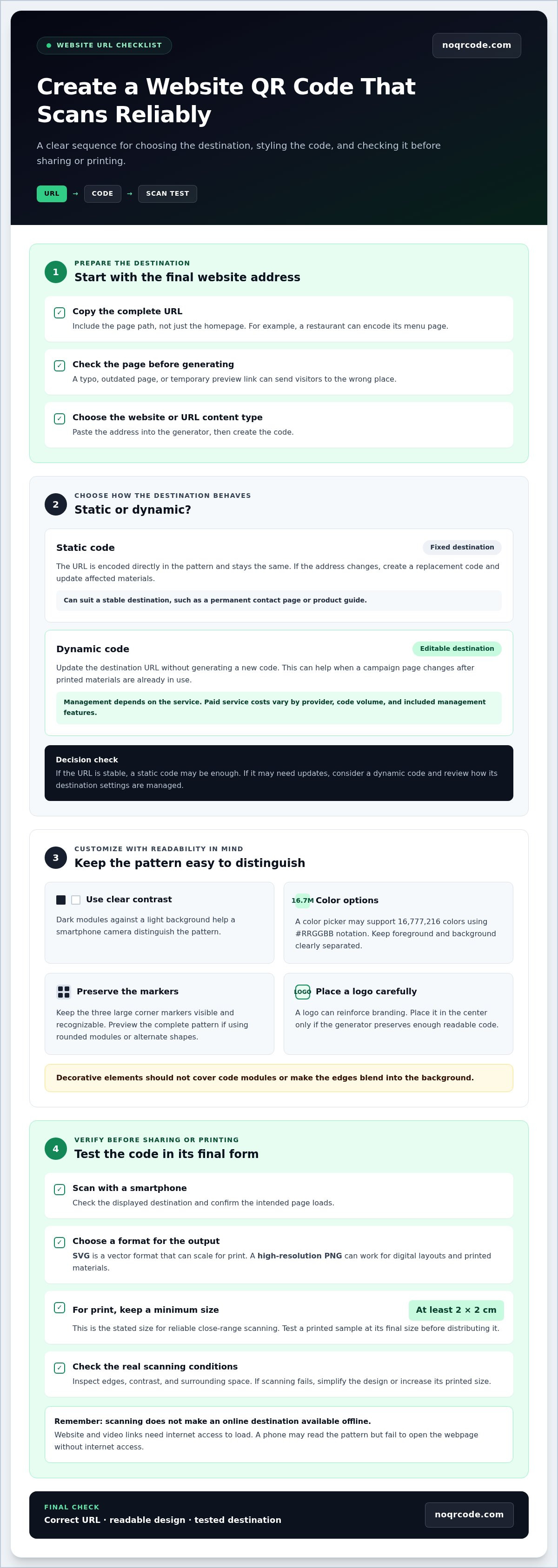
To make a QR code for a website link, copy the complete URL, including its page path, and enter it in a QR code generator’s website or URL field. For example, a restaurant can encode its menu page instead of its homepage. The code gives a smartphone a way to open that specific destination.
Check the address before generating the code. A typo, outdated page, or temporary preview link can send visitors to the wrong place. After generating the code, scan it with a smartphone and confirm the intended page loads. Website and video destinations need internet access, even though the QR pattern itself can be printed or displayed offline.
Changing the Destination URL
Whether you can edit a destination after creating a code depends on its type. A dynamic QR code lets you update its destination URL without generating a new code. That can help when a campaign moves to a new landing page but printed business cards or posters are already in use.
A static code encodes its destination directly, so changing the address means creating and distributing a replacement. Before a campaign begins, decide whether its URL might change. If so, choose a dynamic option and understand where to manage its destination settings. If the address is stable, a static code may be all you need.
Creation and Customization Steps
Use this sequence to create and check a website code:
- Copy the final URL from the browser address bar and check the page opens correctly.
- Select the website or URL content type, then paste the address into the generator.
- Generate the code and customize its colors or add a logo, if available.
- Scan the result with a smartphone and confirm the displayed destination before sharing.
Keep the design readable: strong contrast helps the camera distinguish the pattern from its background. For printed use, make the code at least 2 x 2 cm for reliable close-range scanning, and use a high-resolution download when resizing. Test a printed sample at its final size before distributing business cards or campaign materials.
What is the difference between a static and dynamic QR code?
A static QR code stores its destination directly in the pattern. A dynamic QR code points to an editable destination, so you can change its URL without replacing the printed code. Choose based on whether the destination is fixed or may need updates.
Static codes: fixed destination
With a static code, the encoded URL stays the same after creation. If a campaign’s landing page changes, create a replacement code and update each affected item, such as a poster, package, or business card. Static codes suit destinations that should remain stable, such as a permanent contact page or product guide.
Dynamic codes let you change a destination without reprinting the code, but management depends on the service used. Before choosing one, review how destination edits work and what terms apply. Paid dynamic QR code services in the United States have provider-dependent costs that vary with factors such as code volume and included management features.
Multiple codes and shared destinations
You can create separate QR codes that point to the same URL. For example, a business might put one code on a flyer and another on a counter display. The destination can be the same while each code’s placement remains distinct. Use descriptive filenames or a simple tracking sheet to identify which file belongs to each material.
Separate codes are useful when you need different designs or sizes for the same page. Keep the encoded address consistent, then scan each version before distributing it. If every code may need a new destination later, dynamic codes can support that change; static codes require replacement artwork.
Downloading and using QR codes
Choose a file format for the intended output. SVG is a vector format that can scale for print, while a high-resolution PNG can work for digital layouts and printed materials. For print, keep the code at least 2 x 2 cm for reliable close-range scanning, and avoid resizing it until the pattern becomes unclear.
QR codes linking to websites, videos, and other online content need internet access to load their destinations. A code can appear on a printed menu or digital screen, but scanning it does not store the linked page offline. A phone without internet access may read the pattern but fail to open the webpage.
Test before printing
Before sending artwork to print, scan the downloaded file with a smartphone camera and confirm the destination. Print a sample at its final size and test it again in the conditions where people will scan it. Check the code’s edges, contrast, and surrounding space. If scanning fails, simplify the design or increase its printed size.
Customizing QR code colors and shapes
Customize a QR code to match a brand palette, campaign, or flyer without sacrificing readability. Start with contrast: dark modules against a light background help a smartphone camera distinguish the pattern. A color picker may support 16,777,216 colors using #RRGGBB notation, but a practical palette still needs clear separation between foreground and background.
Keep the three large corner markers visible and recognizable. If a generator offers rounded modules or alternate shapes, preview the complete pattern before saving. Decorative elements should not cover the code’s modules or make its edges blend into the background. Whatever its colors or styling, a static QR code still needs a clear pattern.
Adding a logo can reinforce your branding on business cards, packaging, or event flyers. Place it in the center only if the generator preserves enough readable code around it. QR codes include built-in error correction, which can allow accurate scanning after minor damage or distortion. That feature is no reason to obscure a large area: a prominent logo or busy graphic can still make scanning harder.
Use this design check before exporting:
- Choose foreground and background colors with strong visual contrast.
- Keep logos and decorative shapes away from the corner markers.
- Preview the code on the intended background, not only the generator screen.
- Scan the final file with a smartphone before publishing or printing.
Resolution affects how a customized code looks on its final device or printed surface. A vector file can scale without becoming pixelated, while a raster image can blur if enlarged beyond its original resolution. Check the exported file at its actual placement size. For example, inspect a flyer preview at print scale, not just as a small desktop thumbnail.
Customization and analytics are separate decisions. Color, shape, and logo affect appearance; analytics depend on whether your setup provides scan reporting. If you need campaign measurements, check reporting features before creating codes. Keep the visual design consistent across campaign materials, and give each placement a clearly named file when you need to distinguish versions.
Test each design on more than one device when possible. A code that scans in a desktop preview may behave differently on a printed flyer or another phone. Check the destination, contrast, logo placement, and resolution together. If scanning is unreliable, simplify the shapes, remove decorative elements, or return to a straightforward, high-contrast pattern.
Free QR code generator features
A free QR code generator should make the essential task straightforward: choose the content, enter it, create the code, then export a usable file. For a website, paste the destination address. For a business card, encode a contact page or another relevant destination. The features you need depend on what you’re creating and where people will scan it.
Content options affect what a code can do. One generator offers 22 types of QR codes, covering options such as website links and other content formats. A plain-text QR code can display text of up to 300 characters. That can suit a short instruction or message, but a longer explanation belongs on a webpage instead.
Check the practical terms before creating a code. The generator described here is 100% free, requires no sign-up, and its QR codes never expire. A code that never expires can remain usable as long as its encoded destination stays available. For a website code, the linked page still needs to work when someone scans it.
Downloads matter when a code moves between screens and print layouts. SVG is a vector format that can scale for different placements. A 300 DPI PNG gives you a raster image for layouts that use PNG files. Choose the format that fits your design workflow, then preview the code at its intended size before sharing.
For repeated production, a bulk code generator can create multiple codes in one workflow. This helps when each product, location, or campaign needs its own destination. Keep a clear record of each code’s purpose and destination. For a single item, such as one business card design, creating one code keeps file management simple.
Before choosing a generator, compare its features with your specific task:
- Content types: Check that the generator supports your intended destination or message.
- Customization: Look for the design controls you need, such as color or logo options.
- Export formats: Match SVG or PNG output to your print or digital layout.
- Access terms: Review sign-up requirements, code expiration, and any limits that affect your workflow.
Scan the exported code with a smartphone and confirm its destination. A successful on-screen preview doesn’t replace checking the downloaded file. Test the actual SVG or PNG in your design, especially before printing business cards or distributing campaign materials.
Which free QR code generators are reliable?
Evaluate a free QR code generator by the code it produces and the terms that apply. For a website address, confirm that the finished code opens the exact page you intend. Reliability also depends on usable downloads, clear editing options, and whether the code remains available for your intended use.
Start by checking how the generator handles destination data. A static code stores its destination in the pattern, so its encoded address does not change. A dynamic code may let you update the destination later, but ongoing management can depend on the service’s terms. Read the code type and expiration details before printing the design on business cards or flyers.
Next, inspect the export options. SVG is a vector format that can scale for print, while a 300 DPI PNG offers a raster image for design layouts. Open the downloaded file in your intended application, then scan it from the actual artwork. A preview inside the generator alone cannot confirm the exported file works.
Use this checklist before choosing a tool:
- Destination control: Confirm whether the code is static or dynamic and how edits work.
- Availability: Read whether codes expire or require an account to create or manage.
- File formats: Match SVG or PNG downloads to your print or screen workflow.
- Testing: Scan the exported code with a smartphone and verify its destination.
- Privacy: Review what information the service requests before code creation.
Test a sample before preparing a larger campaign. Create a code for a page you control, download it, then scan it with a separate device. Confirm the destination, the page’s content, and the file’s appearance at its final display size. If the scan opens an unexpected address, stop and correct the destination before distributing the code.
For multiple destinations, create a small sample set first. For example, generate separate codes for a product page and a contact page, then label each file clearly. This shows whether the generator’s workflow suits your intended volume and helps prevent assigning the wrong code to printed material.
Choose a generator that makes its code type, download format, and expiration terms easy to understand. Then create a test code and scan the exported file before using it in a campaign. Create a QR code for your website when you’re ready to prepare and test a code.
NO QR CODE (NOQRCODE.COM): QR Code Generator
NO QR CODE (NOQRCODE.COM) gives you a QR Code Generator for turning a website address into a scannable code. Use it when you need a code for a personal page, business campaign, or printed material. The generator is 100% free, requires no sign-up, and its QR codes never expire.
After entering your destination, download the code as an SVG vector file or a 300 DPI PNG. Scan the exported file and confirm it opens the intended page before sharing or printing. For multiple destinations, the Bulk Code Generator can create codes in one workflow. The QR & Barcode Scanner can scan codes, while the Barcode Generator handles barcode creation.
Visit noqrcode.com to create a website QR code.
Put Your Next Link to Work
Think of a QR code as a small entry point to the next useful action. Before sharing one, decide what you want visitors to do after they arrive: read an update, explore a service, or find event details. That purpose can guide the destination page and placement, so the scan leads somewhere relevant rather than ending the interaction.
A QR code for a website link can support that journey on a printed item or digital screen. Treat the destination as part of the experience: keep its content aligned with the surrounding message, and revisit it when your campaign changes. A thoughtful link makes the code more than a visual shortcut.
Ready to put your next code into use? Contact NO QR CODE for help with your QR code needs. Take the next step at your own pace and create a clear path from scan to destination.
Frequently Asked Questions
Can I add my logo to a QR code?
Yes, you can add a logo if the generator supports logo customization. Choose a simple, high-contrast logo and keep it small enough to preserve the surrounding code pattern. For example, a one-color brand mark usually stays clearer than a detailed image with fine lines. Export the finished design and test it on a phone before using it on packaging, signage, or a digital post.
What type of QR Codes can I create for free?
Free generators can support different content types, depending on their features. Common options include website links, plain text, contact details, and other digital destinations. NO QR CODE offers 22 types of QR codes; its plain-text code can display up to 300 characters. Pick the type based on what a scanner should access, such as a menu page rather than a long block of text.
What is a QR Code generator?
A QR code generator converts selected information into a scannable square pattern. Enter content such as a webpage address, choose the relevant code type, and generate the image. Someone scanning a website code can then follow the prompt to open its destination. Generators may also offer design or download options, so consider the final placement before exporting your file.
What size should a QR code be for print?
For reliable close-range scanning, a printed QR code should be at least 2 x 2 cm. The final size also depends on the scanning distance, print quality, and surrounding design. A code on a hand-held card can be smaller in context than one viewed from across a room. Print a sample at its intended size and test it before producing a full batch.
Can I use the generated QR Codes for commercial purposes?
Generated codes can be used in commercial materials when you have the rights to the linked content, logo, and other included assets. For example, a business can direct customers to its own product information page, but should use only brand artwork it is authorized to reproduce. Check the generator’s usage terms and make sure the destination accurately represents the business or campaign.
Can QR Codes be scanned without an app?
Yes. Most modern smartphones include QR scanning in their camera apps. Open the camera, point it at the code, and tap the notification that appears to access the destination. If the camera doesn’t recognize the pattern, use a QR scanner tool or adjust the phone’s distance and angle. Online destinations still need internet access to load after scanning.
How do I create a QR code for a website link?
Copy the complete page address, including its specific page path, and paste it into a generator’s website or URL field. Generate the code, download the file, then scan it with a phone to confirm the correct page opens. For a campaign, test the final destination on a separate device and make sure the page works for visitors who aren’t signed in to your account.
How do I make a QR code that opens a website on iPhone and Android?
Create a standard QR code with the website’s full address as its destination. iPhone and Android phones can scan QR codes through their camera apps, then show a prompt to open the encoded link. Test the code on both platforms if your audience uses both. Confirm the page displays well on a phone screen and doesn’t require a desktop-only login.
