
The square pattern is only part of the decision: a QR code can point to a fixed destination or an editable one. It’s a two-dimensional barcode that stores information for scanning from any orientation. A free QR code generator online turns supported content into a scannable pattern. Static codes work while their linked content remains available; dynamic codes use links that can be edited.
A free tool can make code creation quick, but “free” doesn’t automatically tell you which content types or features are included. Plain-text codes can work without an internet connection, while codes that open websites, videos, or other online content need one.
This guide explains how QR codes work, how static and dynamic versions differ, and which content types you can encode. You’ll also learn what features to look for in a free tool and how to avoid common issues that make codes hard to scan.
Key Takeaways
- Choose a static code for a fixed destination, or a dynamic code when you need an editable link.
- Understand what affects whether a printed code scans reliably, including contrast, image clarity, and size.
- Match the QR code’s content type to its use, and know when the reader needs an internet connection.
- Compare download formats for your intended use: vector SVG and 300 DPI PNG files serve different workflows.
- Review what free generation includes, such as whether sign-up is required and whether codes expire.
What is the difference between a static and dynamic QR code?
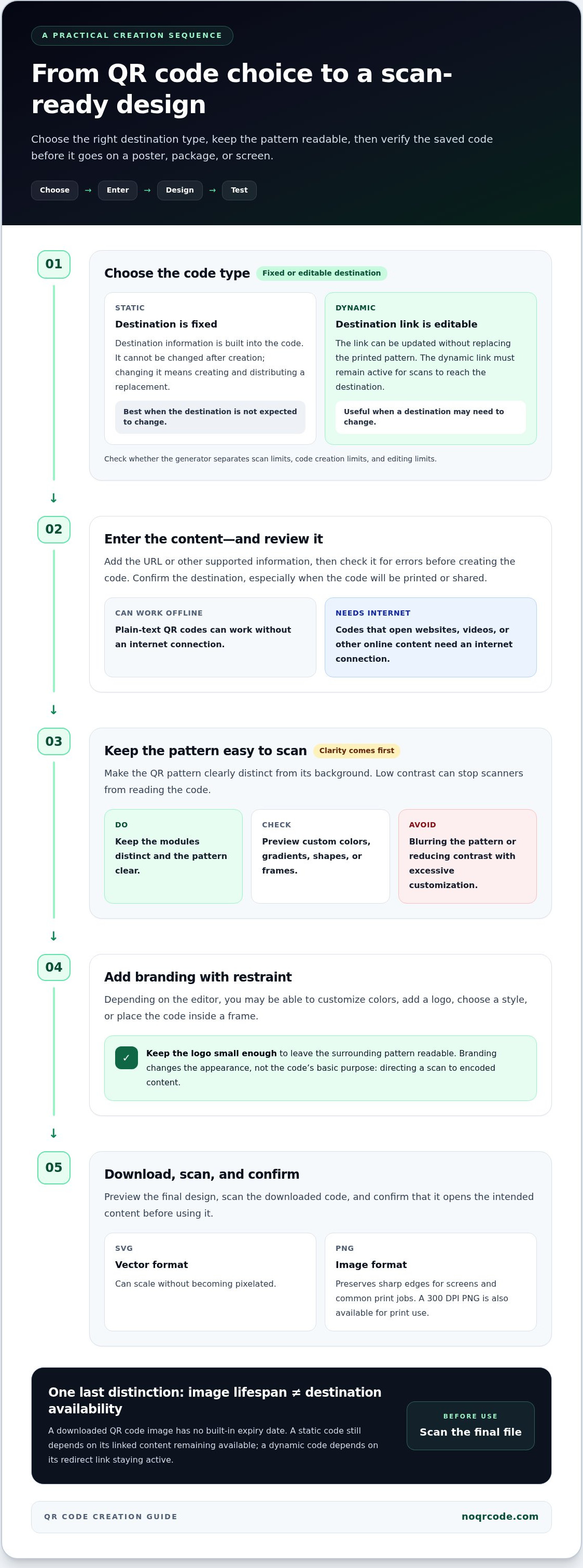
Free QR code generators may offer static codes, dynamic codes, or both, with different features for each. A static code has a fixed destination; a dynamic code points to an editable link. This distinction matters when you choose what to encode and how to brand the design.
With a static QR code, the destination information is built into the code itself. You can’t change it after creating the code, so check the URL or contact details before downloading. The code works as long as its linked content remains available. For example, a printed code pointing to a business card page won’t reach a replacement page if the original disappears.
A dynamic QR code uses an editable link to direct scanners to its destination. If a campaign landing page changes, you can update the destination without replacing the printed code. That flexibility can help with menus or promotional materials, but the dynamic link must remain active. Check the destination before sharing or printing.
Branding changes a code’s appearance, not its basic purpose: directing a scan to encoded content. Depending on the editor, you may be able to customize colors, add a logo, choose a style, or place the code inside a frame. For example, a company could match the foreground color to its packaging and add a small logo to the center.
Use these steps to customize a code without making it difficult to scan:
- Choose the code type: Use static for a destination that won’t need editing, or dynamic when you need to change its link later.
- Set contrast: Keep the QR pattern clearly distinct from its background. Low contrast can stop scanners from reading the code.
- Add branding carefully: Apply a logo, frame, or shape only if the editor supports it, then preview the result with the intended content.
- Test the final design: Scan the downloaded code before using it on a poster, package, or digital screen.
Custom colors and gradients can match a brand palette, while shapes and frames can make a QR code more noticeable. But excessive customization can interfere with scanning, especially if it blurs the pattern or reduces contrast. Keep the modules distinct, and make any logo small enough to leave the surrounding pattern readable. For a code containing contact details, test the downloaded design and confirm that it opens the intended information. A clear, tested design is more useful than a decorative one scanners can’t read.
Static versus dynamic QR codes
A static QR code stores its destination in the pattern; a dynamic code uses an editable link. The right free generator depends on your task: choose one that clearly explains editability, download options, and any scan limits before you create a code. No single option suits every destination.
With a static code, changing the destination means creating and distributing a replacement. For example, a printed flyer with a static event link can become outdated if the event page moves. The code works while its linked content remains available, but it can’t be edited to point elsewhere.
A dynamic code lets you change its destination link without replacing the printed pattern. That can suit a restaurant menu whose online page changes, or a campaign that points to different landing pages over time. Scans can reach the destination only while the dynamic link remains available.
A “scan limit” may mean a cap imposed by a generator, not a limit built into the static code itself. Check whether the tool limits scans, code creation, or editing separately. Don’t assume static QR codes can be edited just because the generator also supports dynamic codes.
Free static QR code creation works well for destinations that are unlikely to change. Before creating a code, decide whether its content needs an editable destination. Then follow this sequence:
- Select the code type: Choose static for a fixed destination or dynamic for an editable link.
- Enter the content: Add the URL or other supported information, then review it for errors.
- Customize and preview: Apply any available design changes and confirm the pattern remains clear.
- Download and test: Scan the saved image and confirm it opens the intended content.
Are free online QR code generators safe and private to use? Safety depends on the information you enter and the service’s data practices. Avoid encoding sensitive details, and preview a QR code’s destination before opening a link that looks suspicious.
How do you create and download a QR code online for free? Select static or dynamic, enter the content, customize the design, then download and test the result. A free QR code generator online should make the code type and download options clear before you save the file.
For a fixed destination, a static QR code generator can take you from entered content to a downloadable code. Choose dynamic instead when an editable link matters, and test the final code before printing or sharing.
Are the created qr codes expiring?
A downloaded QR code image has no built-in expiry date. Codes created with this tool never expire, but the destination still matters: a static code stops being useful if its linked page disappears. A dynamic code also depends on its redirect link remaining active. Distinguish the image’s lifespan from destination availability before printing business cards or packaging.
File format affects how a code behaves in your workflow. PNG preserves sharp edges for screens and common print jobs, while JPEG compression can blur the small squares. SVG is vector-based, so it can scale without becoming pixelated. A 300 DPI PNG is also available for print use. Choose based on where the custom QR code will appear and the quality required.
PDF can be convenient for placing a code in a print layout, but it’s a document format, not a guarantee of print quality. Check the QR code’s actual dimensions and clarity inside the PDF before sending it to production. Colors and logos can affect readability, so test the final design, not just the original black-and-white preview.
For bulk QR code generation, organize each destination with its matching name or label before creating the batch. For example, a set of product pages needs a clear row-to-code mapping so each code ends up beside the correct product. Export the files in a format that suits the layout, then compare each code with its destination before distribution.
Test before printing or sharing. Scan the downloaded file with a smartphone, then scan a proof at its intended size and confirm that it opens the correct destination. For a batch, test each code against its matching label. A successful scan from a large screen preview doesn’t confirm that a small printed code will scan reliably.
Use this practical checklist for each file:
- PNG: Use for a straightforward image workflow, and inspect the code for blur after resizing.
- SVG: Choose vector artwork when the design needs to scale across different print dimensions.
- JPEG: Avoid repeated compression, which can soften the QR pattern’s edges.
- PDF: Review the placed code at its final size before approving the print layout.
Keep the source file with the campaign or product record, so a later reprint uses the same approved design. For practical advice on print dimensions and image resolution, use QR code print guidance before preparing your final layout.
QR code types and content options
Choose the content first, then select a QR code type that suits its destination and use. A website link, video link, or plain-text message, for example, creates a different scanning experience.
Supported Content Types
QR codes can contain plain text or direct people to websites, videos, and other online content. A plain-text code can show a short message or contact details, while a website link can open a campaign page. Check the generator’s content options before entering information, then confirm that the selected type matches what you want someone to see.
Connection needs depend on the content. Plain-text QR codes can work without internet access, while a code linking to a website or video needs an internet connection to load the destination. For a business card, decide whether a scannable text block or an online page better suits the information and how often it may change.
Code Types and Uses
Use a website QR code for a product page or campaign, and a video QR code when the destination is a hosted clip. A plain-text code suits a message that should appear directly after scanning. Match the content to the moment: someone holding a business card may need concise contact details, while a campaign display can direct them to a fuller online page.
Most iOS and Android users can scan QR codes with their device’s native camera app, without installing a separate app. The scan opens or displays the encoded content, so the content type determines what happens next. Test the result on a smartphone before placing the code on a card, sign, or campaign material.
Use this simple selection process before generating a code:
- Define the action: Decide whether the scan should display text, open a website, or play a video.
- Prepare the destination: For online content, use the intended page or video link.
- Choose the content option: Select the matching type in the generator and enter the text or link.
- Scan the result: Confirm the code displays the expected content on a smartphone.
Keep the destination flexible by choosing an online page when its details may need updates. A printed campaign code can point to a page with current information, while a plain-text code keeps its message inside the code itself. Either way, preview the scan to make sure the final experience matches the intended use.
Consider the reader’s setting, too. Someone scanning a display with internet access can open a video or website; someone without a connection can still read plain text encoded in the QR code. That distinction helps you choose useful content for a business card, event handout, or campaign sign.
Free QR code features and limitations
A free tool may cover basic code creation, but features can differ for static codes, dynamic links, and design options. Compare what remains usable after download, what can be edited, and whether scanning depends on a hosted redirect.
Expiration and Scan Limits
QR codes created with this tool never expire. However, a static code still depends on its linked page remaining available, and an online destination needs an internet connection. A dynamic code also relies on its redirect link continuing to work. Distinguish the code’s lifespan from the destination’s.
Free generators may set different limits for dynamic codes, edits, or scans, so read the feature terms before using one for a long-running campaign. Check what happens if a dynamic link reaches a plan limit: an expired redirect can leave a printed code unable to open its intended page. Test the destination before distribution.
Branding on Free Codes
Free design tools may let you change colors, add a logo, or choose a frame, while other features may require a paid plan. A logo or low-contrast color combination can interfere with scanning if it obscures the QR pattern. Preview the code after customization, then scan it on a smartphone before printing.
Print size also affects readability. QRCG recommends that QR codes on small to medium-sized merchandise be at least 2 × 2 cm. Treat that as a practical recommendation, not a universal guarantee: the final result also depends on contrast, clarity, and the printed surface.
Do free QR code generators add expiration dates, scan limits, or branding? Some set limits on dynamic codes or include branding, while terms vary by generator. Codes created with this tool never expire, though a destination page can still become unavailable.
Check the features against your intended use. For a static code on a business card, confirm the destination is correct and likely to remain available. For a dynamic code in a campaign, check whether you can edit the link and whether scan or account limits apply. A free tool can be useful when its features match the job.
Use this quick review before committing to a design:
- Code type: Confirm whether you’re generating static or dynamic codes.
- Access: Check whether the destination needs internet access or a hosted redirect.
- Terms: Review any limits on scans, edits, or continued access.
- Appearance: Test colors and logos for clear scanning before printing.
- Print size: Compare the final code dimensions with its intended placement.
For a code without an expiry date, create a QR code online and test its destination before sharing.
NO QR CODE (NOQRCODE.COM): QR Code Generator
NO QR CODE (NOQRCODE.COM) helps you create QR codes, generate codes in bulk, and scan QR codes or barcodes. Its QR Code Generator is useful when you need a code for a link, text, or another supported content type. You can create codes without signing up, and downloaded files include vector SVG and 300 DPI PNG formats. Codes created with the tool don’t expire, though the linked destination still needs to remain available.
Choose the Bulk Code Generator when preparing multiple codes, or the QR & Barcode Scanner to scan codes. For printed materials, use the available print guidance to prepare your files. Visit noqrcode.com to create a QR code.
Put your next QR code to work
Start by deciding what a scan should help someone do. Choose a destination that fits the moment, such as opening a product page, viewing a menu, or saving contact details. Then prepare the page and its content before creating a code. This simple sequence keeps the scan experience focused on the action you want people to take.
A free QR code generator online can turn that plan into a usable code. NO QR CODE (NOQRCODE.COM) offers a QR Code Generator, Barcode Generator, and QR & Barcode Scanner. Choose the tool that matches your task, then test the finished code in the context where people will encounter it.
Build the scan into a clear next step: explain what the code opens, place it where the intended audience can reach it, and keep the destination useful. When you’re ready to create or scan a code, visit noqrcode.com. Start with one practical use, then shape the experience around your audience.
Frequently Asked Questions
What is a QR code?
A QR code is a two-dimensional barcode that stores information in a square pattern. Unlike a one-dimensional barcode, it can be scanned from different orientations. Denso Wave invented the QR code in 1994. A camera reads the pattern and then displays its contents or opens its destination, depending on the data encoded. For example, a product label can use one to connect a physical item with its online information.
Can I create a QR code for WiFi or contact information?
Yes, if the generator provides Wi-Fi or contact-card fields. A Wi-Fi code can hold network connection details, while a contact code can package a name, phone number, email address, or other contact information. The scanning device’s software determines how that information appears. Before sharing the code publicly, review the encoded details, especially if they include private contact information or access credentials.
Can I use the generated QR Codes for commercial purposes?
Commercial use depends on the generator’s terms and your rights to the linked content. A QR code doesn’t grant permission to use a logo, image, video, or web page you don’t own or have permission to share. For a product insert or campaign sign, use destinations and brand assets you’re authorized to publish, and review the tool’s terms before distributing codes at scale.
Is there a scan limit for the qr codes?
A scan limit depends on how the code works and the generator’s terms. Scan tracking and access conditions can vary depending on how a QR code is set up and the generator’s terms. A dynamic code relies on a redirect service, where the provider may set access conditions. For a campaign, distinguish scan tracking from scan access, then review the dynamic link’s terms before printing materials.
What are recommended sizes and practices for printing?
For small to medium-sized merchandise, QRCG recommends a printed QR code at least 2 × 2 cm. Keep strong contrast, preserve a clear border around the pattern, and avoid stretching or blurring the artwork. Print a proof at the intended size, then scan it with a smartphone under the lighting expected at the point of use. That test can catch layout problems before a full print run.
Which QR code file formats and sizes do free generators support?
Available formats and dimensions vary by generator. NO QR CODE (NOQRCODE.COM) provides vector SVG and 300 DPI PNG downloads. SVG is useful when a designer needs to scale artwork in a layout; PNG works as a raster image for common digital and print workflows. Match the format to the software and output method, then check the exported file at its final placement size.
Can free QR codes be customized with colors, logos, and frames?
Some generators include controls for color, logos, or frames; others offer fewer design options. Keep the pattern distinct from its background, and don’t let a logo cover so much of the code that scanners struggle to read it. After applying a design, scan the exported file rather than relying only on the on-screen preview. Test the version you’ll actually publish or print.
What is the difference between static and dynamic QR codes, and which is free?
A static QR code keeps its encoded destination fixed, while a dynamic QR code uses an editable link. Static codes are often available without charge, but access to dynamic features depends on the generator’s terms. Choose static for a destination that won’t change. Choose dynamic when you need to redirect a code later, and check any ongoing access conditions before using it.