
A QR code can look sharp on screen and still become difficult to scan after resizing or printing. A QR code SVG download keeps the code’s edges crisp at different sizes, but choosing a vector file is only part of the job. The final size, contrast, and clear margin around the code all matter.
If you’re deciding between SVG and PNG, choose based on where the code will appear. SVG suits print and designs that may need resizing; PNG works well when the image will stay at a fixed size on a screen. Neither format removes the need to test the finished code.
This guide explains how to download an SVG QR code, choose a format for print or digital use, and check that it scans before you publish or send it to print. You’ll also learn what to inspect after resizing and how the encoded destination affects later changes. NO QR CODE (NOQRCODE.COM)’s online generator offers SVG and 300 DPI PNG downloads with no sign-up.
Key Takeaways
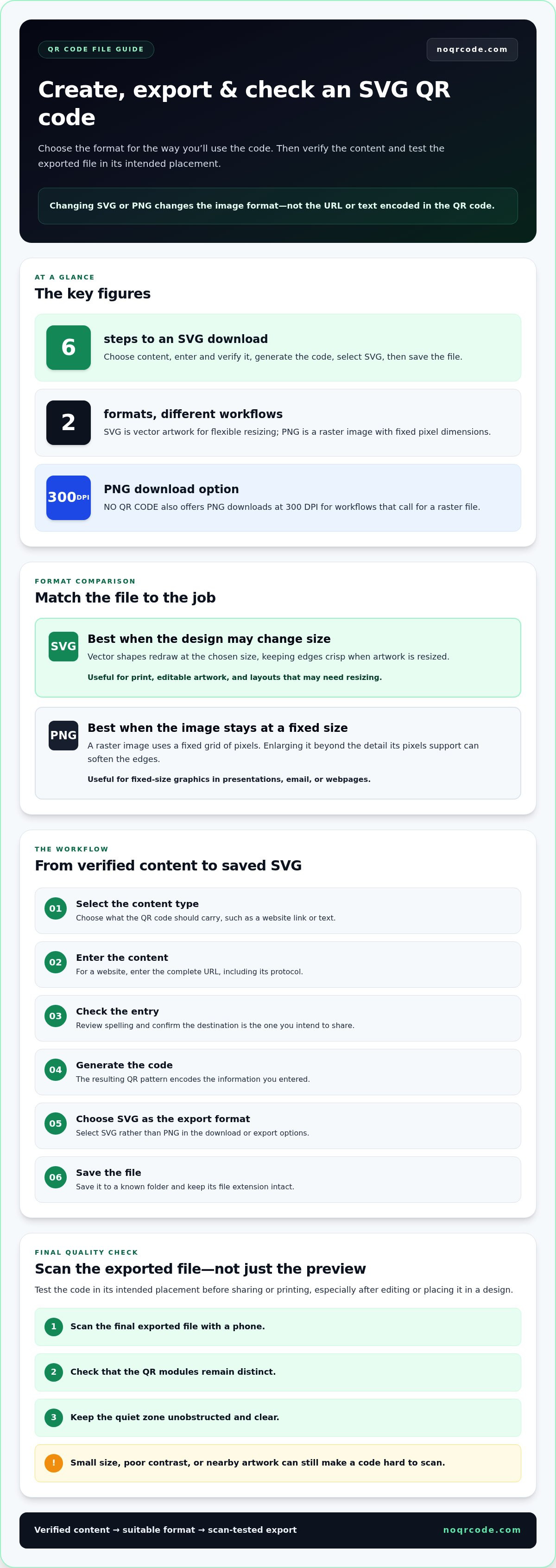
- A QR code SVG download changes the image format, not the destination or text encoded in the code.
- Verify the URL or text before generating your code, then save the SVG for flexible resizing and vector design workflows.
- Choose PNG for a fixed-size raster image; choose SVG when the design may be resized.
- Before sharing or printing, scan the exported file with a phone. Check that the modules stay distinct and the quiet zone remains clear.
- NO QR CODE’s generator creates SVG files without sign-up and also offers PNG downloads at 300 DPI.
What Does an SVG QR Code Download Give You?
An SVG QR code is made from vector shapes rather than a fixed grid of image pixels. That matters when the same code needs to fit a small package label, a poster, or another layout at different sizes without losing crisp edges.
An SVG is vector artwork defined by shapes and coordinates, while a PNG is a raster image made from a fixed-resolution grid of pixels. Enlarging vector artwork redraws its shapes at the new size. Enlarging a PNG stretches its existing pixels, which can make edges look blurred or jagged.
Downloading a QR code as SVG changes its file format, not the information encoded in its pattern. The destination URL or text stays the same. A QR code’s matrix, data encoding, and error correction are separate from whether its image is saved as SVG or PNG. For background on those elements, see QR code standards and specifications.
How does an SVG QR code differ from a PNG?
SVG is useful when you may need to resize or edit the artwork in a vector design workflow. PNG has fixed pixel dimensions, so enlarging it beyond the detail its pixels support can soften the edges. PNG still works well at its intended display size. NO QR CODE (NOQRCODE.COM) also provides PNG downloads at 300 DPI for workflows that call for a raster file.
When is SVG the practical choice?
Choose SVG when a designer may need to resize the code across layouts or place it in editable artwork. For example, a packaging design might use one code in several label sizes, or a poster layout might need adjustments before export. Vector artwork makes those changes easier without pixelation from enlargement.
SVG is not the best fit for every task. PNG may be more convenient for a fixed-size graphic in a presentation, email, or webpage, especially when the platform expects a raster image. Match the file to the design workflow and the dimensions where it will be used.
File format alone does not determine whether a QR code will scan. Keep the modules distinct, leave an unobstructed quiet zone around the code, and place it where a phone camera can capture it. A neatly scaled SVG can still be hard to scan if the code is too small, has poor contrast, or is crowded by nearby artwork.
Think of SVG as a flexible source for layouts that may change, and PNG as a practical option when a fixed-size image fits the job. In either case, check the exported code in its intended placement before sharing or printing it.
How to Create and Download a QR Code as SVG
A reliable QR code SVG download starts with the right content, not the export button. Decide what the code should contain and verify it before generating and saving the vector file. Checking the source data first helps prevent a polished code from leading to the wrong page or displaying incorrect information.
What should you prepare before generating the code?
Choose the destination or information you want the QR code to encode, such as a website address or a short piece of text. For a website, enter the complete URL, including its protocol, such as https://. Review every character before generating: a typo or outdated destination becomes part of the QR code.
Use this workflow:
- Select the content type. Choose the information the QR code should carry, such as a website link or text.
- Enter the content. Add the destination or information in the generator’s input field. For a URL, include the full address and protocol.
- Check the entry. Confirm the spelling and make sure the destination is the one you intend to share.
- Generate the code. Create the QR code from the verified content. The resulting pattern encodes that information.
- Choose the export format. Select SVG rather than PNG in the download or export options.
- Download the file. Save the SVG to a known folder and keep its file extension intact so compatible applications can recognize it.
How do you save and open the SVG file?
Open the downloaded file in a web browser to view it, or use a vector-editing application to place it in a layout. SVG is XML-based vector artwork; MDN explains how Scalable Vector Graphics (SVG) represent graphics in a format that can scale across display sizes. Before changing colors, dimensions, or surrounding design elements, save an untouched copy. You can return to it if an edit affects the artwork.
Generate the code from verified content, export it as SVG, then scan the final file with a phone before sharing or printing. Test the exported version, not just the generator preview, especially if you’ve edited it or placed it in a design. A direct online QR code generator takes you from entering content to downloading an SVG without sign-up.
SVG vs. PNG: Which QR Code Download Fits Your Use?
Choose the file based on how you’ll place, resize, and share the QR code. SVG keeps artwork flexible for layouts that may change; PNG provides a raster image for platforms or software designed for pixel-based files. Neither format is automatically right for every workflow.
| Factor | SVG | PNG |
|---|---|---|
| Scalability | Resizes without pixelation because it uses vector shapes. | Has fixed pixel dimensions; enlarging it can soften edges. |
| Resolution behavior | Not tied to a fixed pixel grid; the output device renders it at the chosen size. | Image detail depends on its pixel dimensions and display or print size. NO QR CODE offers PNG downloads at 300 DPI. |
| Editing | Useful in vector design workflows for scaling and layout adjustments. | Fits raster-image workflows and tools that work with pixels. |
| Common uses | Artwork that may need resizing, such as retail signage or editable design files. | Fixed-size graphics for a presentation, web page, or upload workflow requiring raster images. |
The W3C SVG specification describes the format’s vector-based graphics structure. This makes SVG useful when artwork needs to adapt to different dimensions. PNG can be simpler when the destination specifically requires a raster file or its display size is already set.
Which format should you use for print?
SVG can simplify print layout changes because a designer can adjust the code’s dimensions without enlarging a fixed pixel grid. Still, the format does not guarantee scan reliability. Check the code at its intended printed size, with distinct modules and a clear surrounding margin. Test a proof in the actual placement before approving the final artwork.
Keep file format separate from print specifications. SVG describes how artwork scales; it does not determine the physical size that suits a scan distance or ensure that a printed code has enough contrast. PNG can also be print-ready when its pixel dimensions suit the intended output size. Inspect either format at the size it will actually appear.
Which format should you use for websites and design tools?
For a responsive layout or a design file that may be resized, SVG offers flexibility. For a platform that accepts raster images or an asset that will remain at a known size, PNG may fit more directly. Before publishing, export the artwork through the tool or platform you’ll use, then scan that final version. Resizing or processing can change how clearly the code appears.
As a quick rule, start with an SVG for flexible resizing and vector editing, and choose PNG when a raster image fits the workflow. Then verify the finished code at its real output size. File format is one design decision; placement and scan testing are separate checks.
How to Check an SVG QR Code Before Sharing or Printing
A QR code SVG download can remain crisp as you resize it, but that does not prove the finished design will scan. Validate the exported artwork in its final placement, after editing and at the size people will encounter. A quick phone test can catch changes a preview alone may not reveal.
What should you inspect after editing an SVG?
Review the code for covered, distorted, or missing modules, especially if artwork overlaps it or you have recolored the design. Keep a clear margin around all four sides: ISO/IEC 18004 specifies a quiet zone of at least four modules. Nearby text, borders, or illustrations should not intrude into this space. Scan the placed or exported version, not just the generator preview.
Use this checklist before sharing:
- Inspect the pattern. Confirm the modules remain separate and the three large finder patterns at the corners are visible.
- Check the quiet zone. Keep the surrounding margin solid and unobstructed. Do not let a frame, caption, or background graphic run into it.
- Review contrast. Make sure the code stands out clearly from its background. Avoid color combinations that make the pattern difficult to distinguish.
- Match the real placement. View the code at its intended size on the screen, page, package, or sign where people will scan it.
- Scan with a phone. Point a phone camera at the final artwork and confirm it reads the code without unusual positioning.
- Verify the result. Check that the scan opens the intended destination or displays the expected content.
How can you test the code in its real setting?
Test each version people will use. If the code appears online and in print, scan it on screen and from a representative printed proof. Check it from the likely viewing distance and angle, with lighting and surrounding design as close to the real setting as practical. This tests the full experience, not just whether the SVG file opens correctly.
Repeat the test after resizing, recoloring, moving the code, or placing it in a design application. Even small layout edits can reduce clear space or affect contrast. If a scan fails, remove nearby clutter, restore the quiet zone, or return to a simpler color treatment. Then export and test the updated version again.
Scan the final rendered QR code at its actual size and placement, then confirm that it delivers the intended content. Treat this as the last quality check before publishing or sending artwork to print. A successful test of the original file does not validate a later edited or resized version.
Create a fresh code with the QR code generator, then check the exported artwork before using it.
Download an SVG QR Code Free Without Signing Up
Once you’ve chosen SVG for a design that may need resizing, create and save the file with a direct online tool. NO QR CODE (NOQRCODE.COM) provides an online QR code generator with SVG vector downloads and a 300 DPI PNG option. The workflow requires no sign-up, so you can focus on entering the content and selecting the format you need.
What can you expect from the NO QR CODE generator?
The generator lets you create a QR code from your chosen content and download it as an SVG. If your project needs a raster image, choose the PNG option, available at 300 DPI. Use either format in your design workflow, depending on how the code will be placed and handled.
NO QR CODE (NOQRCODE.COM) states that its generated QR codes never expire. This describes the codes’ validity, not whether every destination or piece of encoded content stays unchanged. Check what you’ve entered before generating the code and verify the result after scanning.
Create your QR code and download the vector file
Prepare the destination or information you want to encode, then enter it in the generator. For a website, use the full URL and review it for errors before creating the code. Choose SVG as the download format when you need scalable vector artwork. Save the file somewhere easy to find, and keep the original unchanged if you plan to edit a copy for a layout.
Before placing the SVG in a finished design, open it in a compatible browser or vector-editing application to confirm it displays as expected. Then scan the version you intend to use, especially if you’ve resized or edited it. That final check connects the download to the real task: preparing a code for its intended placement.
If your project calls for a fixed-size raster image, choose PNG. The 300 DPI PNG download is an alternative for workflows that expect a pixel-based file, while SVG is useful when resizing flexibility matters. Select the format that fits the job without creating an account.
For a straightforward QR code SVG download, enter your content, generate the code, and choose SVG. Use PNG when a raster file is a better fit, and check the finished code before sharing or printing it.
Create a free QR code and download it as SVG.
Put Your QR Code Into the Next Design
Make the QR code part of your design handoff, not an afterthought. Keep the artwork with the project files, note its placement and final dimensions, and give collaborators the tested version. This makes it easier to reuse the correct asset as a layout moves from draft to packaging, signage, or a digital page.
Once you know where the code will appear, choose the format that fits the workflow. A QR code SVG download is a practical starting point when the design may need to adapt across layouts. Before release, scan the version in context and confirm it leads to the intended content.
Ready to prepare your code? Create a QR code and download it as SVG, then place it in your design and check the final result.
Frequently Asked Questions
Is SVG better than PNG for QR codes?
SVG is more flexible if you expect to resize a QR code, while PNG can suit a platform that specifically needs a raster image. For example, an editor may accept PNG uploads but not SVG files. Check the requirements of the tool or destination where you’ll use the code, then test it at the displayed size. Neither format guarantees a successful scan by itself.
Can I print an SVG QR code at any size?
SVG artwork can scale without the pixelation that may appear when you enlarge a small raster image, but that does not mean every printed size will scan reliably. The code still needs distinct modules, good contrast, and enough empty space around it. Print a representative proof at the planned size and test it from the distance people are likely to scan before distributing it.
How do I download a QR code as an SVG?
Enter the content you want to encode, generate the QR code, then select SVG as the download format. Save the file and open it in a browser or compatible vector editor to check how it displays. For a QR code SVG download intended for a layout, inspect the artwork after placing it in the design. Scan that finished version and confirm the result.
Does downloading a QR code as SVG change what it links to?
No. Exporting the QR code as SVG changes how its artwork is stored, not the information encoded in the pattern. The code still represents the content supplied when it was generated. Check the destination or text before generation, then scan the exported file to verify the result. If the destination changes later, changing the image format alone will not update the encoded information.
Will my QR code expire after I download the SVG?
NO QR CODE states that QR codes generated with its tool never expire. Downloading the SVG does not add an expiration date; it saves the QR code artwork as a file. The destination is separate from the code itself. If a linked webpage is removed or its address changes, someone scanning the code may no longer reach the expected information.
Can I edit an SVG QR code in a design program?
Yes. You can open an SVG in a compatible vector-editing application and place it in a larger design. Keep a copy of the original, and avoid stretching, covering, or deleting parts of the QR pattern. After editing, export or save the full design in the format you’ll share, then scan that final output. This catches issues introduced during layout or export.

