
A barcode that looks right still needs valid data and a file that stays sharp at print size. An EAN-13 barcode carries exactly 13 numeric digits, with the final digit acting as a check digit. An EAN-13 barcode generator can turn the number into a scannable symbol and export it as an SVG for flexible resizing.
It’s reasonable to want a quick way to create a barcode without guessing which digits to enter or whether the finished image will scan. This guide explains how to generate an EAN-13 barcode online, how the check digit is calculated, and why SVG is useful when artwork needs resizing. You’ll also learn what to consider when choosing a compatible scanner and how to test the barcode before using it on a product or document.
Key Takeaways
- Choose SVG when you need barcode artwork that can scale for different layouts while keeping its lines crisp.
- Use the check digit to catch data-entry errors, but remember that a valid checksum alone doesn’t mean a product number is officially assigned.
- Match the scanner to the barcode format, then test the printed result at its intended size and placement.
- Generate a barcode from your number, review its preview, and select a download format that fits your workflow.
What are the benefits of downloading barcodes in SVG format?
SVG keeps an EAN-13 barcode image sharp when you resize it. Unlike a raster PNG, an SVG stores vector shapes instead of a fixed grid of pixels. That makes it useful for packaging layouts that change size during design. EAN-13 belongs to the GS1 system and supports product identification in global retail. Its format encodes exactly 13 numeric digits, using characters from 0 to 9.
The first digits form the prefix, followed by product data and a final check digit. A valid pattern can be generated from digits, but mathematical validity alone does not establish that a number is an officially assigned product GTIN. Use the identifier assigned for your product before preparing retail packaging. That keeps the barcode image tied to the right product identification.
There is no single size, quiet zone, or print resolution that suits every placement. Set the final dimensions and clear space using the applicable GS1 symbol specifications; preserve the quiet zone and avoid enlarging a low-resolution raster file. SVG avoids a fixed pixel resolution, while PNG needs enough pixels for its final printed size.
A GS1 EAN-13 barcode license in the United States is separate from downloading an image. Its cost depends on the applicable GS1 licensing arrangement, not whether the barcode file is SVG, PNG, or PDF.
To download an EAN-13 barcode as SVG, PNG, or PDF, enter the assigned number, select the required file format, then choose download. SVG suits scalable artwork; PNG provides a raster image, while PDF can fit document-based workflows. Check the exported file at its intended layout size before printing.
For smaller packages, EAN-8 uses 8 digits. An EAN-13 barcode can also carry a separate 2-digit or 5-digit supplement beside the main symbol. Choose the format that matches the product and space available; don’t replace an assigned EAN-13 number with EAN-8 merely to make the artwork smaller.
How does the check digit work in UPC-A and EAN-13 barcodes?
A check digit tests whether a numeric barcode follows its required calculation. EAN-13 uses 12 data digits and one final checksum digit; UPC-A uses 11 data digits and one check digit.
Check-Digit Calculation
For EAN-13, start with the first 12 digits and alternate weights of 1 and 3, beginning with 1 at the left. Add the weighted values, then find the remainder after dividing the sum by 10. The check digit is the amount needed to reach the next multiple of 10. If the remainder is zero, the check digit is zero.
For example, the first 12 digits of 0012345678905 produce a weighted sum of 85. The next multiple of 10 is 90, so the final digit is 5. Compare the calculated digit with the number’s last digit before encoding it or sending it to scanners.
Checksum Digits
The check digit helps detect data-entry errors, but it does not prove that a product number has been officially assigned. It verifies the numeric pattern, not product ownership or registration. A mathematically valid code may still be unsuitable for retail product identification.
EAN-13 detects 90% of transposition errors, except cases where adjacent digits differ by 5. A matching check digit therefore supports error detection, but it cannot identify every mistake. Review the original digits as well as the calculated result.
UPC-A uses the same modulo 10 principle, applying alternating weights to its 11 data digits to calculate the twelfth. An EAN-13 beginning with 0 can represent the same number as a UPC-A code with that leading zero removed. For example, UPC-A 012345678905 corresponds to EAN-13 0012345678905.
To validate a code, enter its data digits into a barcode tool and compare the generated check digit with the printed number. If you need to create a symbol after checking the arithmetic, use a barcode generator to encode the numeric value. Then scan the result and confirm the decoded digits match your intended data.
Barcode scannability and compatible scanners
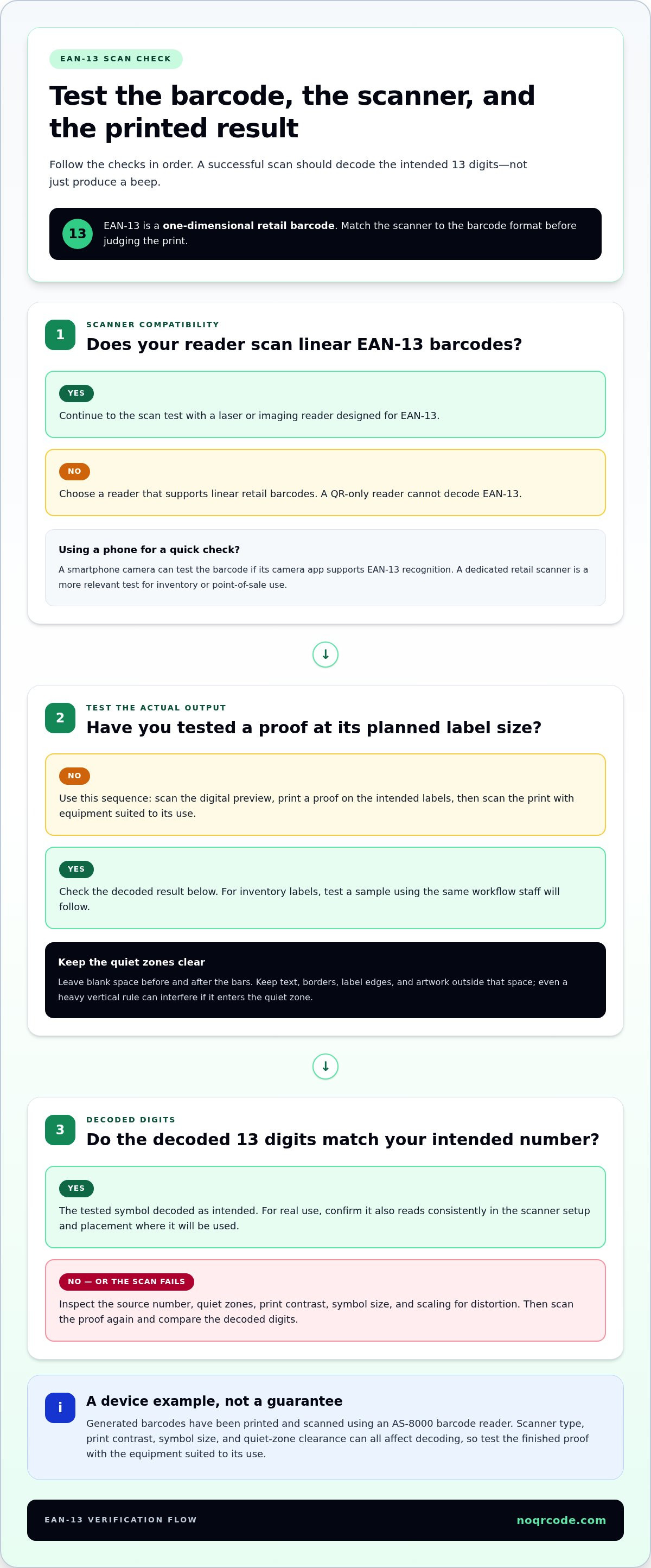
Before printing, test the EAN-13 symbol with a barcode reader and compare its decoded 13 digits with your intended number. Scan a proof at its planned label size, then check that the scanner returns the same digits consistently.
An EAN-13 symbol is a one-dimensional barcode, so choose a scanner that reads linear retail barcodes. A laser or imaging reader designed for EAN-13 can decode the bars; a QR-only reader cannot. The European Article Number identifies a product through its numeric data, while the scanner converts the bars back into those characters.
Quiet zones are the blank areas before and after the bars, and they are essential for scanning. Keep text, borders, label edges, and artwork outside them. For example, a heavy vertical rule beside a barcode can interfere with scanning if it enters the quiet zone.
Smartphones can also test a barcode when the camera app supports EAN-13 recognition. Hold the phone steady, show the complete symbol, and avoid glare across the bars. A phone scan is useful for a quick check, but a dedicated retail scanner gives a more relevant test for inventory or point-of-sale use.
Generated barcodes have been printed and scanned using an AS-8000 barcode reader. That provides a concrete device example, not a guarantee that every scanner setup will behave identically. Scanner type, print contrast, symbol size, and quiet-zone clearance all affect decoding.
Use a practical test sequence: scan the digital preview, print a proof on the intended labels, then scan the print with equipment suited to its use. Check the decoded digits, not just whether the scanner beeps. If the result is wrong or the scan fails, inspect the source number, quiet zones, contrast, and scaling for distortion.
For inventory labels, test a sample using the same workflow staff will follow. A successful phone scan alone does not show that the barcode will also read at a checkout counter or warehouse station.
Generating EAN-13 barcodes online
For labels or packaging, the best EAN-13 barcode generator accepts your assigned product number, calculates its check digit, and lets you export artwork suited to print. Look for a clear preview and SVG download, so you can assess the design before placing it in a package layout. A mathematically valid number isn’t automatically an officially assigned product identifier.
Use this workflow to prepare a barcode image:
- Enter the product’s assigned numeric data. EAN-13 uses 12 data digits before the check digit.
- Review any leading zeros carefully. Some generators add zeros to inputs shorter than 12 digits, which can change how you intended the number to appear.
- Inspect the on-screen preview. Confirm that the displayed digits match your intended article number.
- Select a file format. SVG suits scalable design files; PNG works as a raster image. Keep the original file for future layout changes.
- Place the barcode in your label or packaging design, preserving clear space around the bars.
For inventory management, match each barcode to its product record. Give different package sizes their own assigned product numbers rather than reusing one code. The barcode carries the numeric identifier; your inventory system links it to the product details.
Batch generation can help prepare several products together. A tool that supports up to 20 barcodes per batch can produce a set for a small product range. Review every preview and match each code to its corresponding item before using the images in artwork. A batch doesn’t replace accurate product-number assignment.
Before printing, test a proof at the intended label size with a scanner used in your workflow. Check the decoded digits and the printed quiet zones. Generate the barcode from correct product data, then choose export settings that suit the design file and print process. Generate EAN-13 barcodes online and prepare an SVG or PNG for your layout.
NO QR CODE (NOQRCODE.COM): QR Code Generator
NO QR CODE (NOQRCODE.COM) provides tools for creating and working with digital codes, including its QR Code Generator, Barcode Generator, QR & Barcode Scanner, and Bulk Code Generator. Use the Barcode Generator to turn product data into barcode artwork, or the Bulk Code Generator to prepare codes for multiple products. The scanner can read a code so you can compare its decoded data with the intended value.
These tools support different steps in a code workflow: creation, batch preparation, and scanning. NO QR CODE (NOQRCODE.COM) is 100% free and requires no sign-up, so you can use the tools directly. For an EAN-13 project, keep the assigned product number and final artwork aligned, then scan a proof before using it in your workflow.
Visit NO QR CODE (NOQRCODE.COM) to generate or scan a code for your next project.
Put Your Barcode Workflow into Practice
Make barcode creation part of a repeatable product workflow. Keep product records and artwork aligned, and use the same review process whenever packaging or label designs change. This makes barcode preparation easier to manage as your catalog grows.
An EAN-13 barcode generator is most useful when it fits into that workflow, from entering product data through preparing and checking the finished code. NO QR CODE (NOQRCODE.COM) brings code creation and scanning tools together: use its QR Code Generator, Barcode Generator, or QR & Barcode Scanner according to the task. Choose the tool that matches what you need to create or read, then keep the output connected to the correct product information.
Ready to put a code tool to work? Visit NO QR CODE (NOQRCODE.COM) and choose the next step for your project. A clear process helps you move from barcode data to usable artwork with confidence.
Frequently Asked Questions
What is an EAN-13 barcode?
An EAN-13 barcode is a one-dimensional symbol used to identify products, especially in retail. Its encoded number links a physical item to product information in business systems; the bars themselves don’t display details such as a product description. For example, a retailer can scan a package at checkout and use the number to retrieve the matching item record.
Don’t have EAN numbers yet?
A barcode tool can create a mathematically valid symbol, but it can’t assign an official product identifier to your business. For products that need an officially assigned GTIN, obtain the number through the relevant GS1 process before creating retail artwork. Keep each number matched to the right product and variant, such as a separate package size, to avoid confusing inventory records.
What are the maximum character limits for the different barcode types supported?
Limits depend on the barcode format. Code 128 supports up to 80 alphanumeric characters, while Code 39 supports up to 50 characters. EAN-13 requires 13 numeric digits, EAN-8 requires 8, and UPC-A uses 12 digits. These formats aren’t interchangeable: choose based on the data you need to encode and the system that will read it.
What’s the main difference between UPC-A and EAN-13 barcodes?
UPC-A contains 12 digits and is used primarily in the United States and Canada; EAN-13 contains 13. An EAN-13 number starting with 0 can represent the same number as a UPC-A code when that leading zero is removed. For packaging distributed across markets, check which number format your product records and retail systems expect.
How does an EAN-13 barcode work, and what do its 13 digits represent?
The bars encode a numeric product identifier that a compatible scanner reads as digits. The first 12 digits carry the number’s data, while the final digit checks the preceding digits for certain errors. The manufacturer prefix and product reference occupy varying portions of those data digits, so don’t assume a fixed split. Use the assigned number for the specific product.
How do I generate an EAN-13 barcode online for free?
Enter your product number in an online barcode tool, review the generated symbol, then select a download format. NO QR CODE (NOQRCODE.COM) provides a free Barcode Generator with SVG and 300 DPI PNG downloads. Use the assigned product number, keep the downloaded file with its product record, and scan a proof before placing it into final artwork.


